

*Example of script
function TriggerWorkflow(entityName,workflowGuid) {
var xx = prompt(Xrm.Page.data.entity.getId(),Xrm.Page.data.entity.getId());
/*Generate Soap Body.*/
var soapBody = "<soap:Body>" +
" <Execute xmlns='http://schemas.microsoft.com/crm/2007/WebServices'>" +
" <Request xsi:type=\'ExecuteWorkflowRequest\'>" +
" <EntityId>" + Xrm.Page.data.entity.getId() + "</EntityId>" +
" <WorkflowId>" + workflowGuid + "</WorkflowId>" +
" </Request>" +
" </Execute>" +
"</soap:Body>";
/*Wrap the Soap Body in a soap:Envelope.*/
var soapXml = "<soap:Envelope " +
" xmlns:soap='http://schemas.xmlsoap.org/soap/envelope/' " +
" xmlns:xsi='http://www.w3.org/2001/XMLSchema-instance' " +
" xmlns:xsd='http://www.w3.org/2001/XMLSchema'>" +
GenerateAuthenticationHeader() +
soapBody +
"</soap:Envelope>";
/* Create the XMLHTTP object for the execute method.*/
var xmlhttp = new ActiveXObject("Msxml2.XMLHTTP");
xmlhttp.open("POST", "/MSCRMservices/2007/crmservice.asmx", false);
xmlhttp.setRequestHeader("Content-Type", "text/xml; charset=utf-8");
xmlhttp.setRequestHeader("SOAPAction", "http://schemas.microsoft.com/crm/2007/WebServices/Execute");
/* Send the XMLHTTP object. */
xmlhttp.send(soapXml);
}
Purpose:
- Im creating a new button to trigger the workflow.
- Avoiding few clicking when running on demand workflow.
- Fast and easy to call.
CRM 2011 Call Workflow Using Javascript
0 commentsRESCO MobileCRM for Microsoft Dynamic CRM
0 comments
*Welcome to Resco MobileCRM
For more information on Resco link will be below:
-> Resco Website
Advantages
1. Offline / Online Mode
- That mean this mobile apps work when online and offline. The way the data integrate together is by synchronizing.
2. Dashboards & Charts
- Can view the view and the chart over the local database.
3. Activity Feeds
- Share information and real time notification.
4. Interactive Maps
- Show multiple accounts, contacts or leads as pins on an interactive map with filters and search.
5. Phone Integration
- Track the phone calls as CRM activities.
6. Photo capturing
- Use the built-in camera of your device to take photos, upload them to MS Dynamics CRM and share them with your colleagues.
7. GPS tracking
- Define what activities of mobile users to track and preview them on a map showing entire business route of the mobile worker.
8. Iframes
- Use iFrame to show public, or secure content with an option to pass parameters and authenticate with user's credentials.
9. Supported entities
- Any number of standard and custom entities can be added to the mobile app.
10. Signatures
- Add signatures or drawings.
11. Many-to-many
- Administration tool (Woodford) provides control over the many-to-many relationships (e.g. the relationship between Orders and Products)
12. Switchable Views
- Each view, related to an entity containing GPS coordinates can be switched between a list, or a map.
13. Encrypted database
- Local database is encrypted.
14. Attachments
- The app supports PDF, MS Office, pictures, html as attachment of each entity.
15. Barcode Scanner
- Scanning of barcodes simplifies the work process and it has plenty of advantages: Speed, Accuracy, Data integrity, etc. *Note: so far as i know this feature need to be customize.
16. Emails
- Send/reply/forward emails from Mobile CRM and auto track in the local database.
17. Filtered Lookups
- Filtered lookup view according to fields from the source entity (e.g. show only account’s contacts)
18. Tour Plan
- A special calendar component shows appointments in Agenda, Day, Week, or Month views which give s user better overview and easier new appointment scheduling.
19. Navigation
- Mobile CRM app gives a user optimal driving directions to Account, Contact, Lead and More.
20. Consistent UX
- All users have the same user experience on iPhone/iPAD, Android or Windows powered devices, which is a perfect fit for BYOD (bring your own device) scenario.
Currenty im using it with CRM 2011.
CRM 2011 Change The Default Organization
0 comments
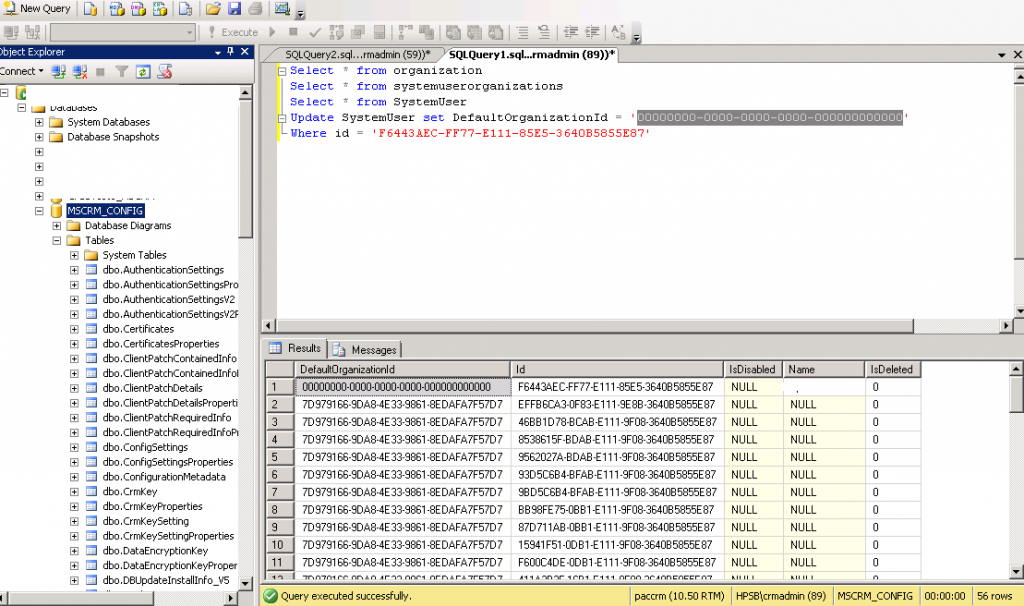
| Eg. Server Name : http://111.11.11.11/ Organization : Test1 Organization : Test2 In internet explorer when we key in server name into the URL default organization will be selected. Let say the default organization for this server name is Test1 and when u key in the server name into the url the link will be http://111.11.11.11/Test1/. Default organization will be selected automatically. How do we actually change the default organization ? Here what i found. Default organization is based on user. That mean each user have their own default organization. Here the way to do it. 1. Go to SQL Server where CRM installed **Kindly change the GUID's** 2. Use MSCRM_CONFIG Select * from organization You can find the list of organization in your CRM. 4. Find the User’s ID: Use MSCRM_CONFIG Select userid from systemuserorganizations where crmuserid = <6893e7a3-62b8-e011-aa60-000c292cbbe1> User ID | ||
|
CRM 2011 Link Two Grids Together
0 comments
CRM 2011 Link Two Grids Together (Parent Child Grid)
Click Here To Link To The Webpage:
Link Two Grid